> ## Documentation Index
> Fetch the complete documentation index at: https://docs.peaq.xyz/llms.txt
> Use this file to discover all available pages before exploring further.
# Ledger
**Type:** Hardware Wallet
## Instructions:
1. Set up your Ledger device and install Ledger Live on your computer: [https://support.ledger.com/article/4404389503889-zd](https://support.ledger.com/article/4404389503889-zd).
2. Connect your Ledger Device to your computer and install peaq app on your ledger device through Ledger Live: [https://support.ledger.com/article/4404382258961-zd](https://support.ledger.com/article/4404382258961-zd).
3. Set up Metamask wallet and add peaq network to it by following this instruction: [Create Metamask wallet and add peaq mainnet.](/peaqchain/build/getting-started/get-test-tokens#create-evm-wallet)
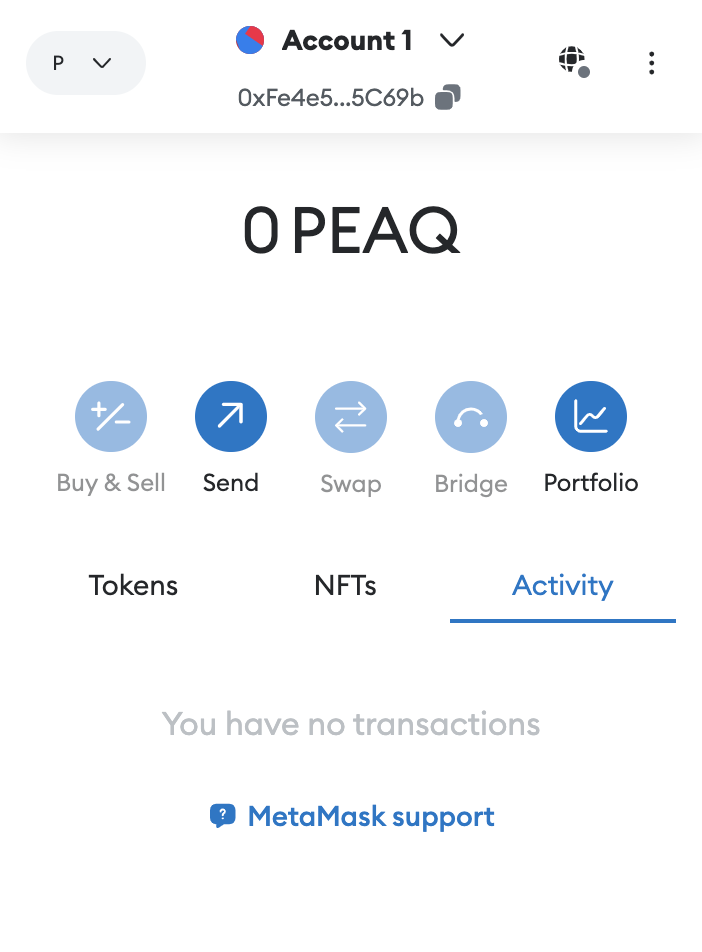
4. Go to Metamask and click on the down arrow next to your account name at the top of the screen:
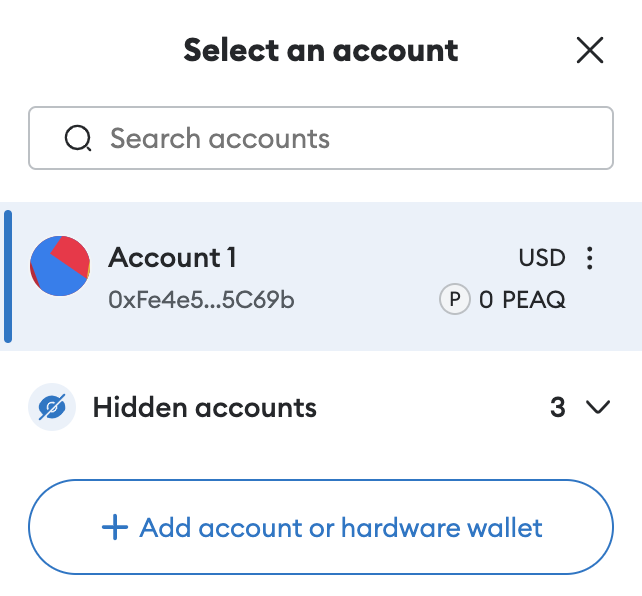
 5. Click **Add account or hardware wallet**
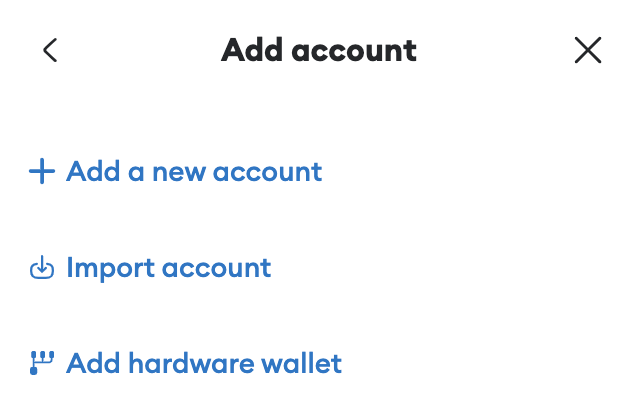
 6. Next, click **Add hardware wallet**
 7. Now, go back to your connected Ledger device, unlock it, and select peaq app
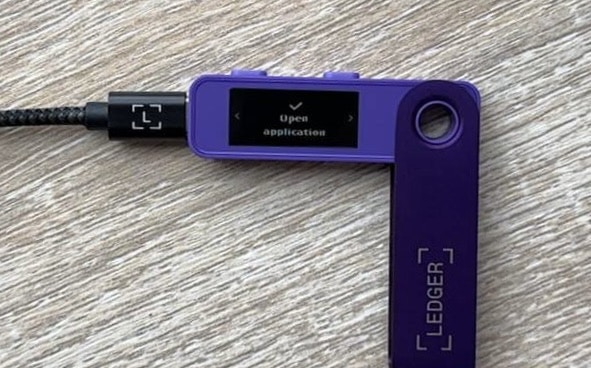
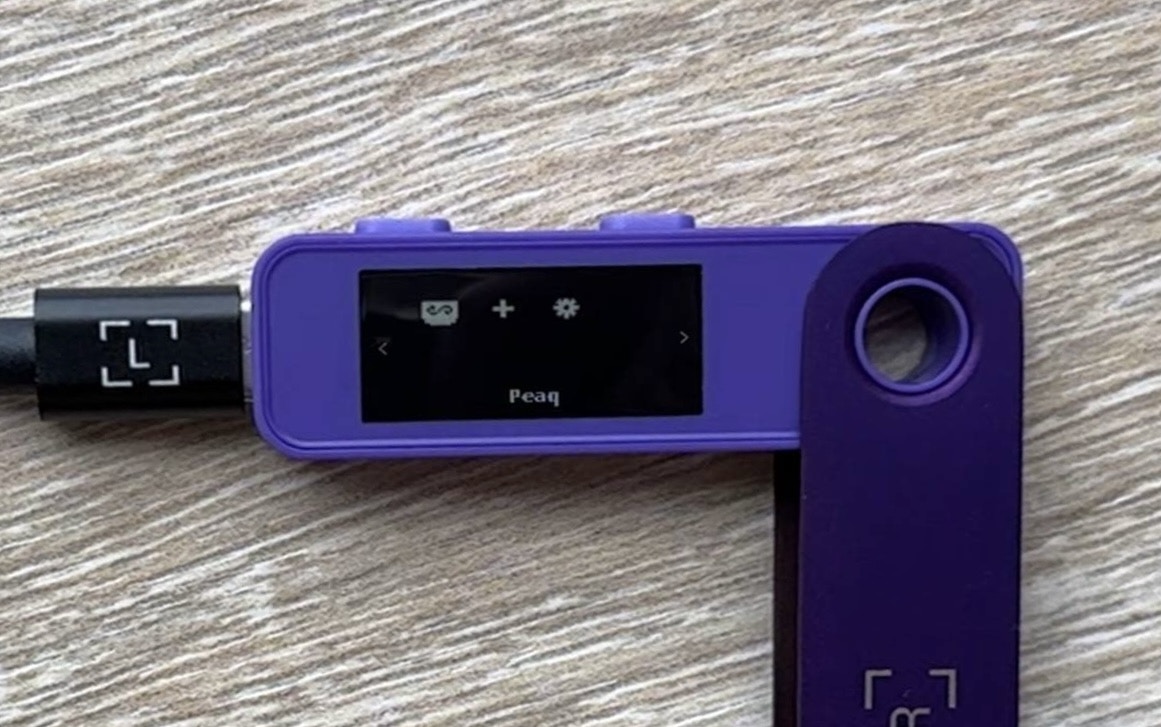 8. Once selected click the right button until you see **Open application**, then click both buttons on the device
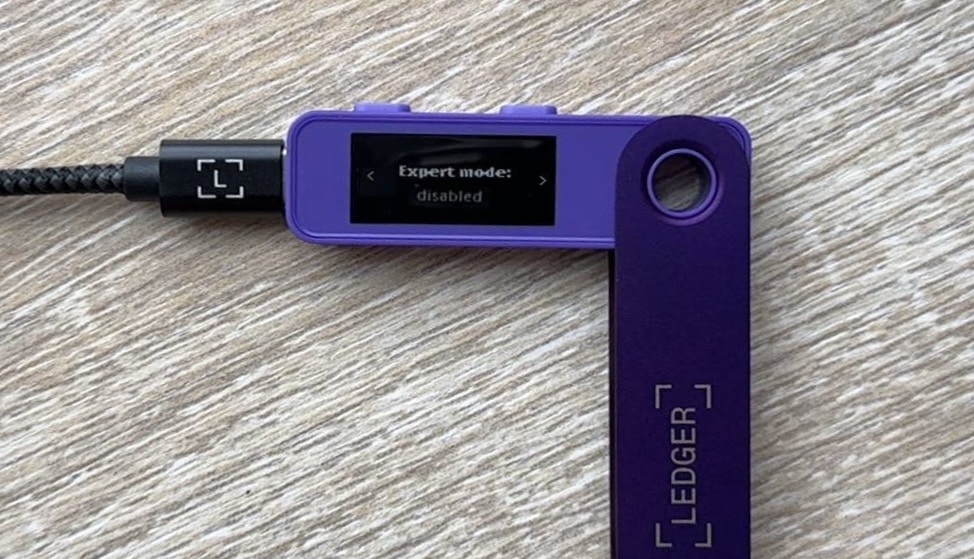
 9. Click right button until you see **Expert mode: disabled**
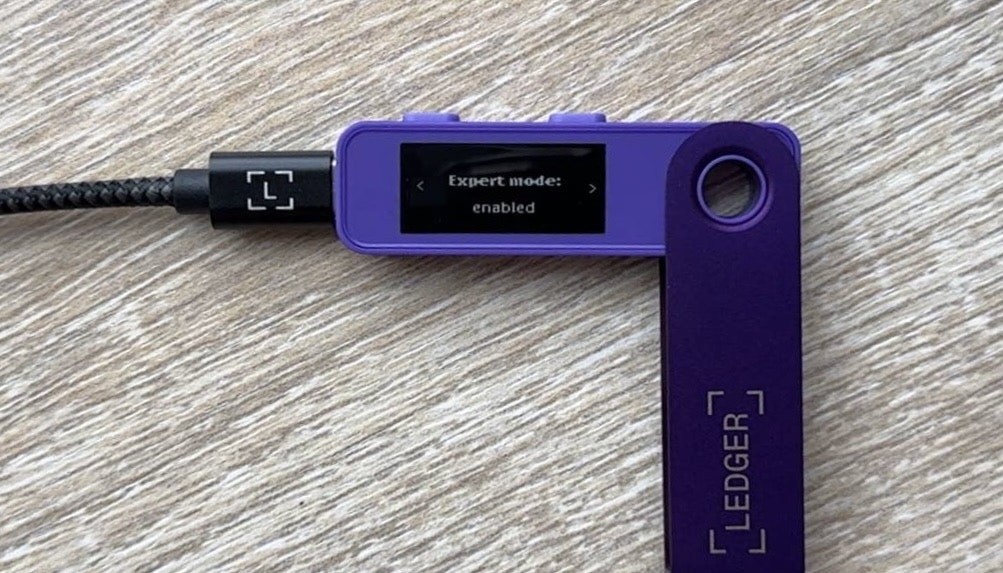
 10. Click both buttons to enable Expert mode, this is how your screen will look like after a successful change
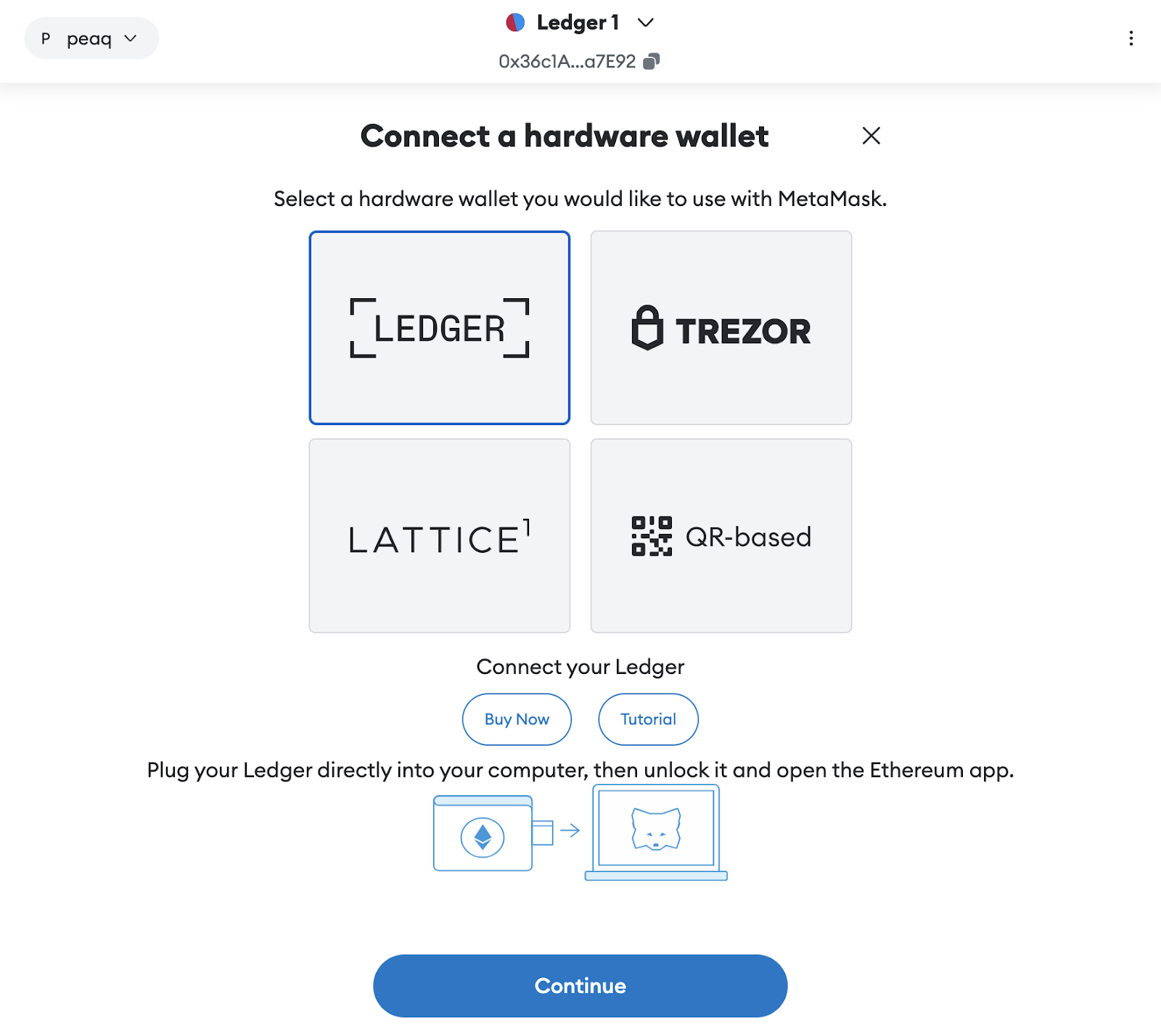
 11. Now go back to your Metamask window, select Ledger, and then click **Continue**
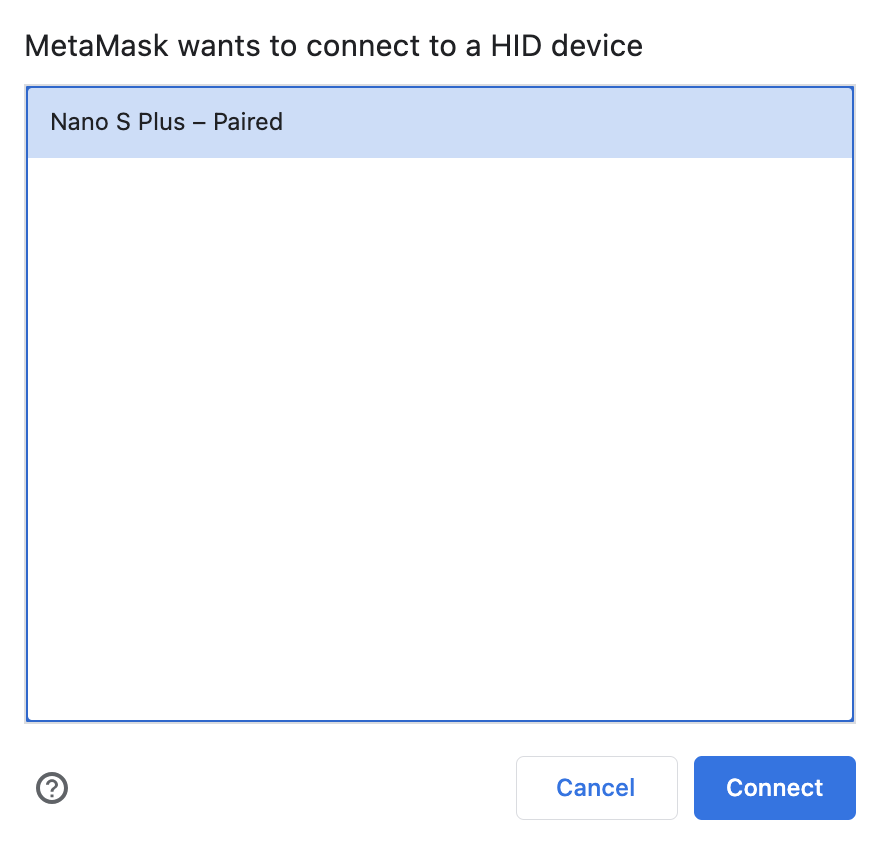
 12. Next, select your Ledger device in the pop-up window and click **Connect**
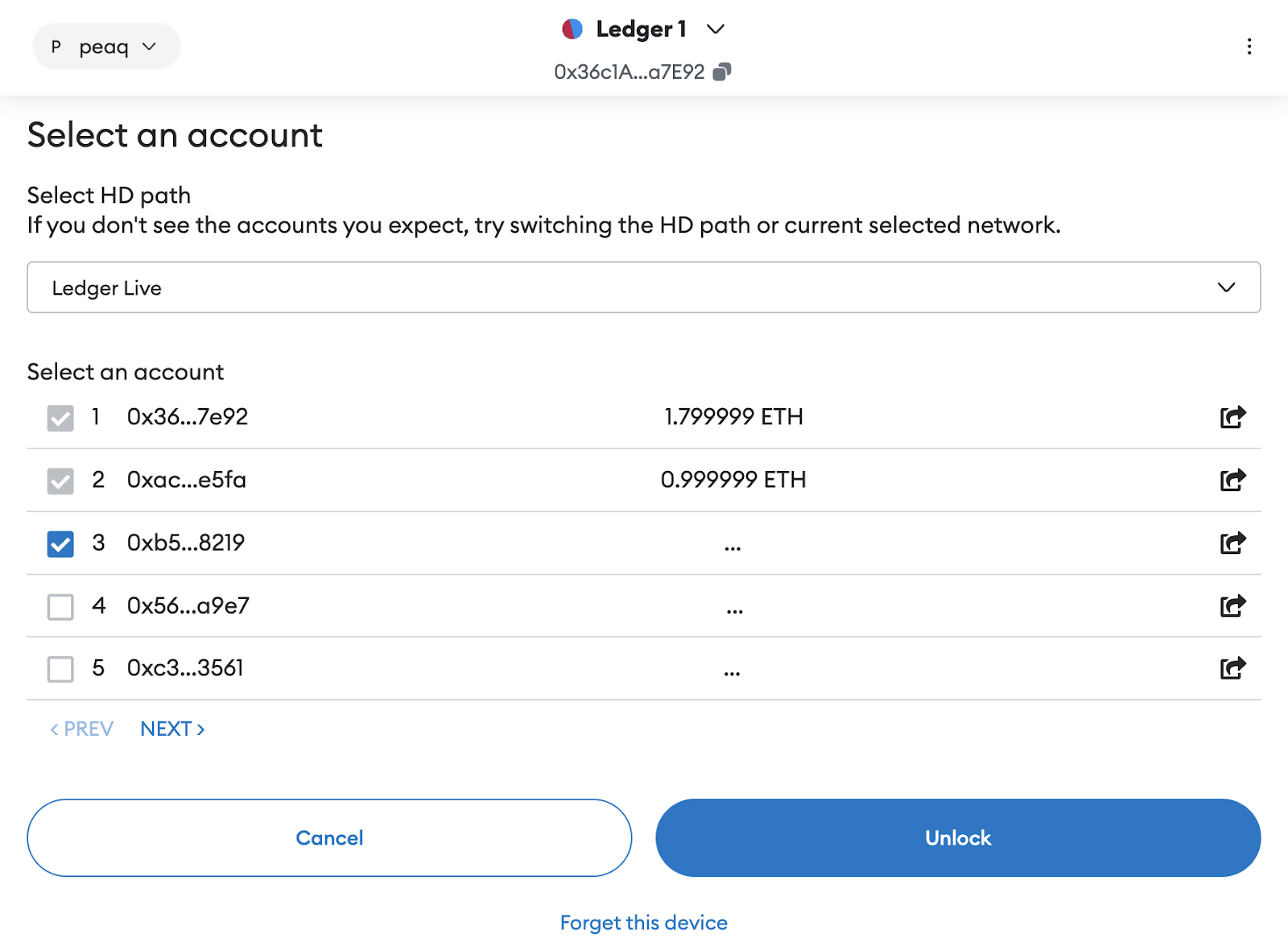
 13. After that you will see this screen, we’ve previously added Ledger accounts to this Metamask, that's why we have non-zero balances in accounts 1 & 2. In your case, all accounts should display a 0 balance. Select any account and click **Unlock** (we've selected account 3).
 ## Receive \$PEAQ tokens with Ledger + MetaMask
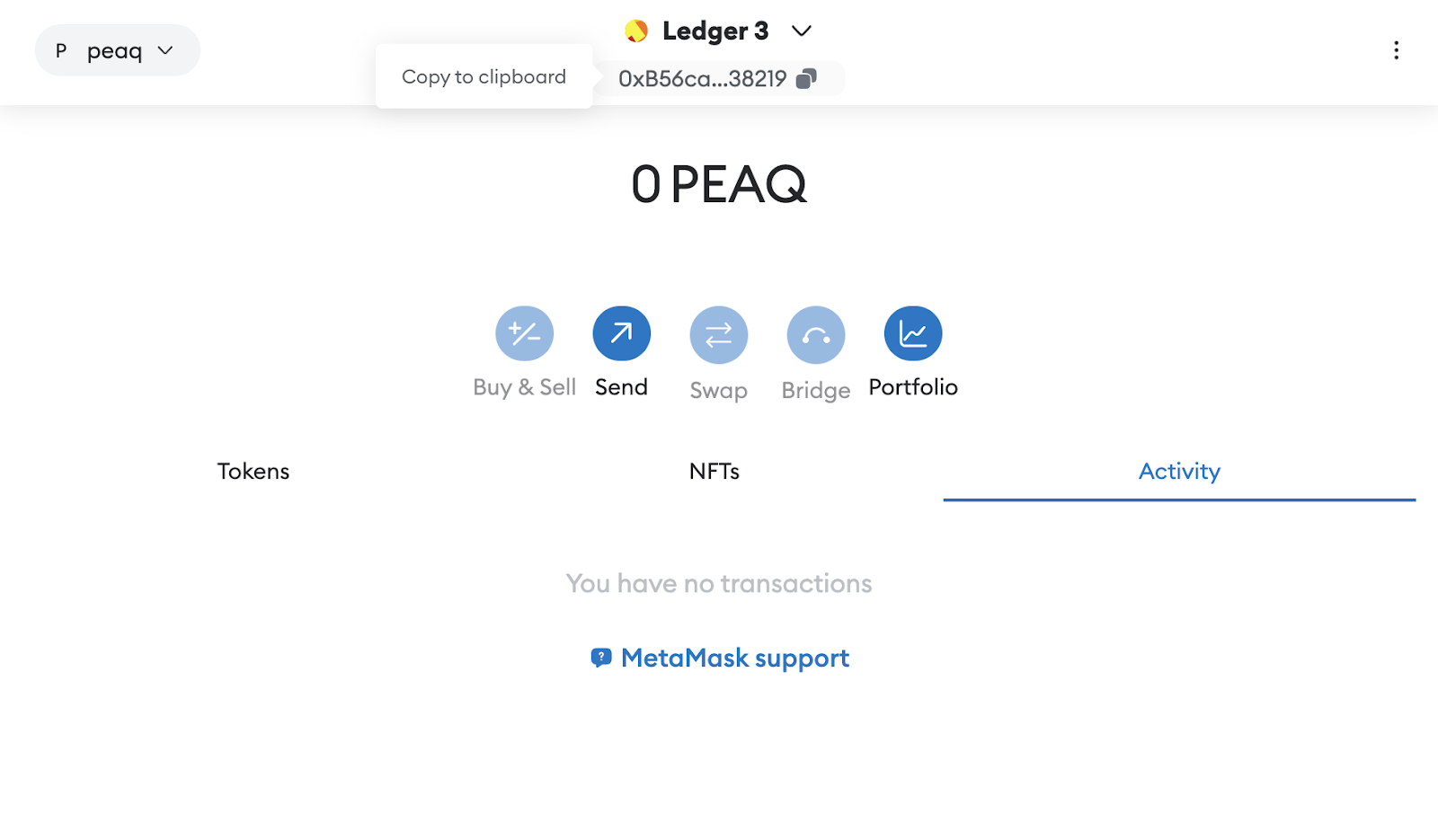
1. This is your Ledger account, which we just created. Now we will copy the address, to send some \$PEAQ tokens to it.
## Receive \$PEAQ tokens with Ledger + MetaMask
1. This is your Ledger account, which we just created. Now we will copy the address, to send some \$PEAQ tokens to it.
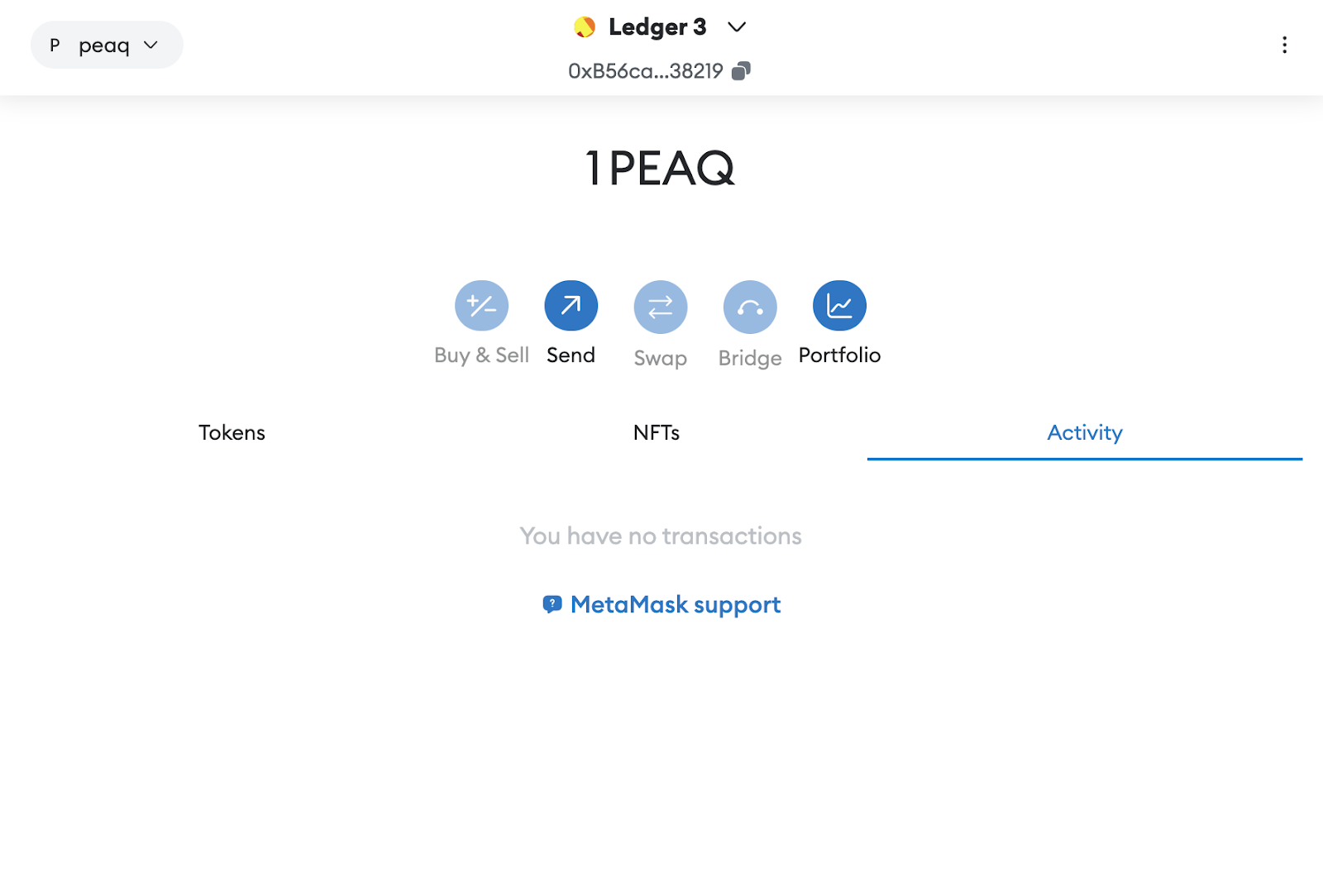
 2. Once tokens are received you'll see them in the interface
 ## Send \$PEAQ tokens with Ledger + MetaMask
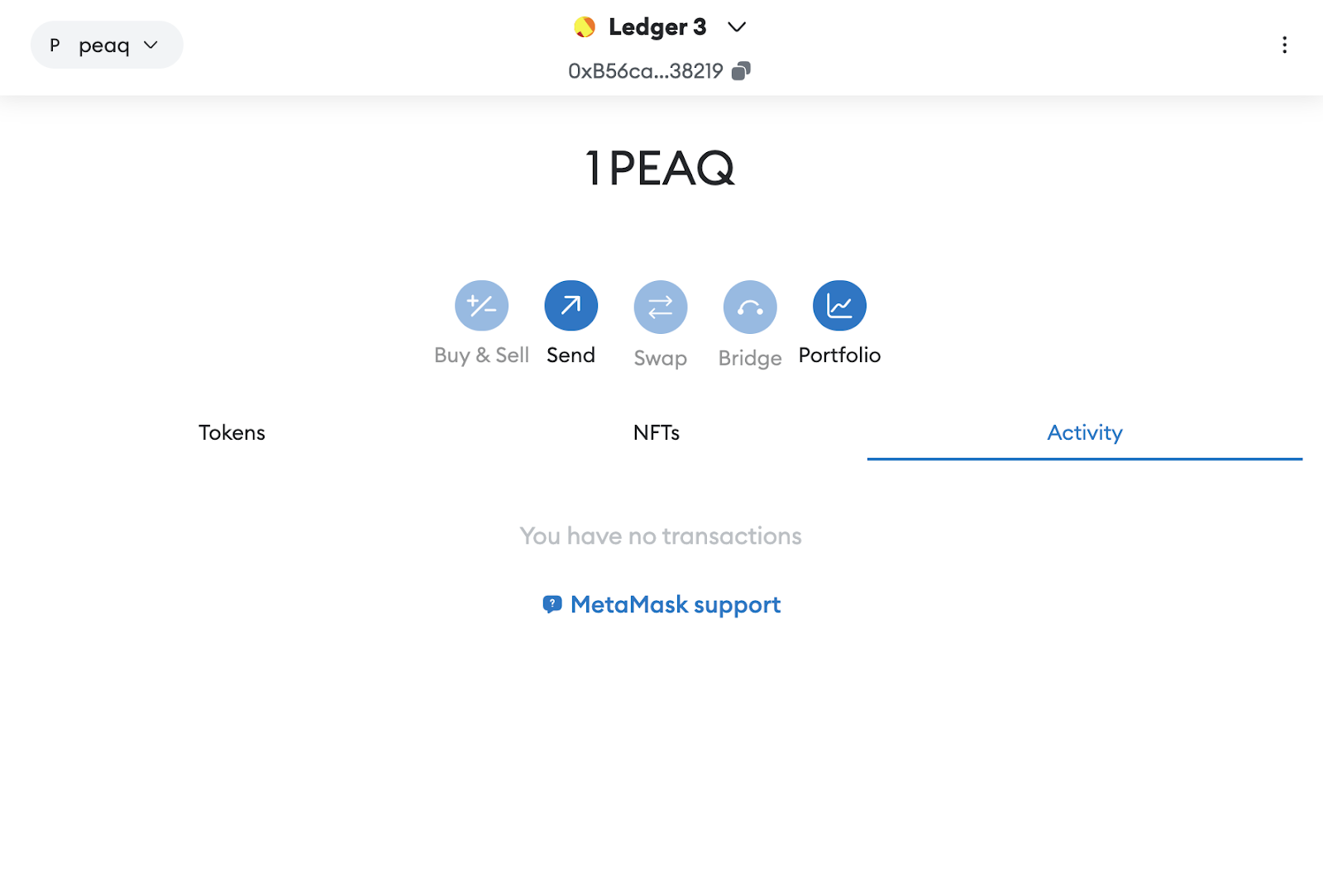
1. Now, let's try to send some PEAQ to another address, click **Send**
## Send \$PEAQ tokens with Ledger + MetaMask
1. Now, let's try to send some PEAQ to another address, click **Send**
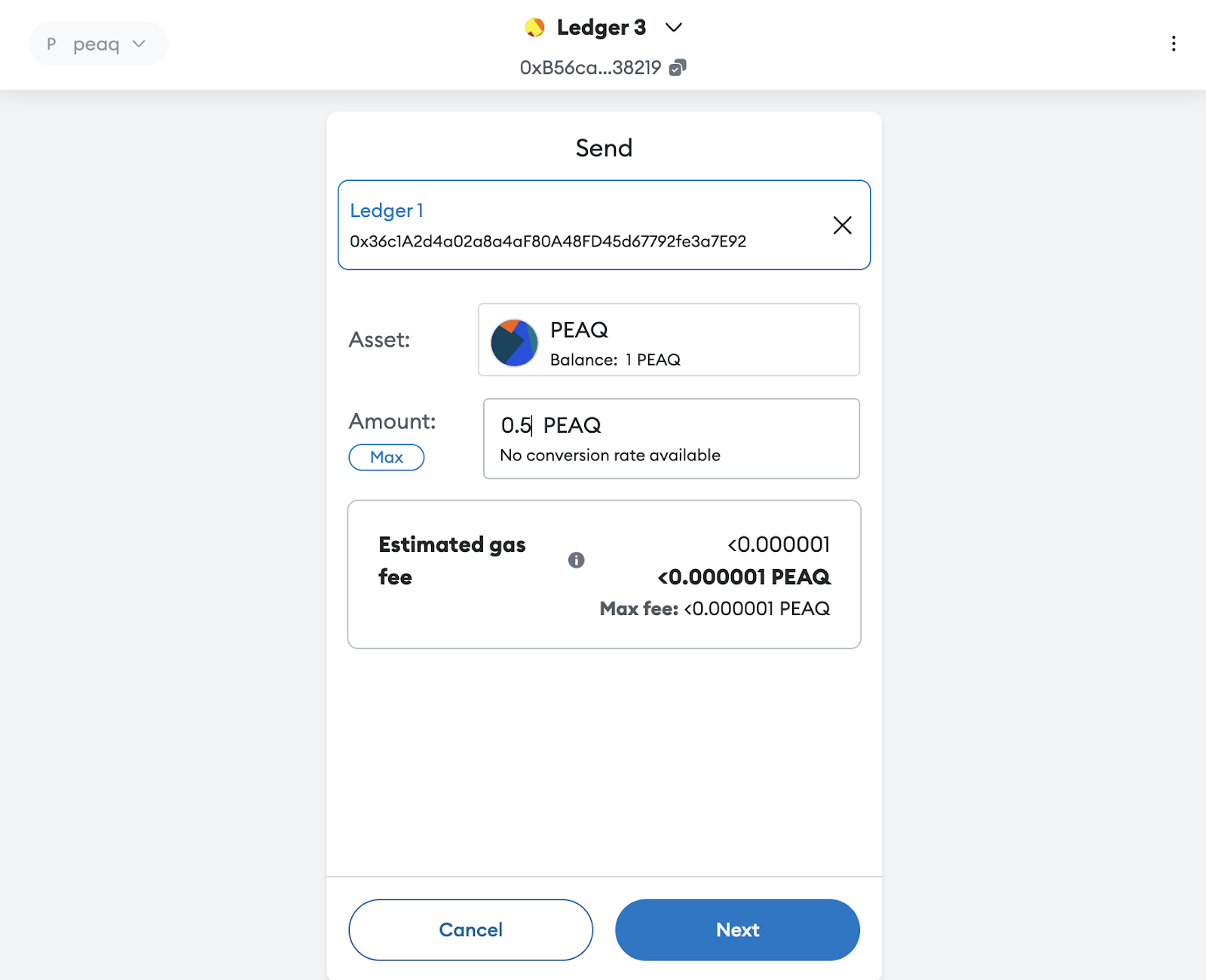
 2. Paste the address you would like to send $PEAQ tokens to and enter the amount in $PEAQ, then click **Next**
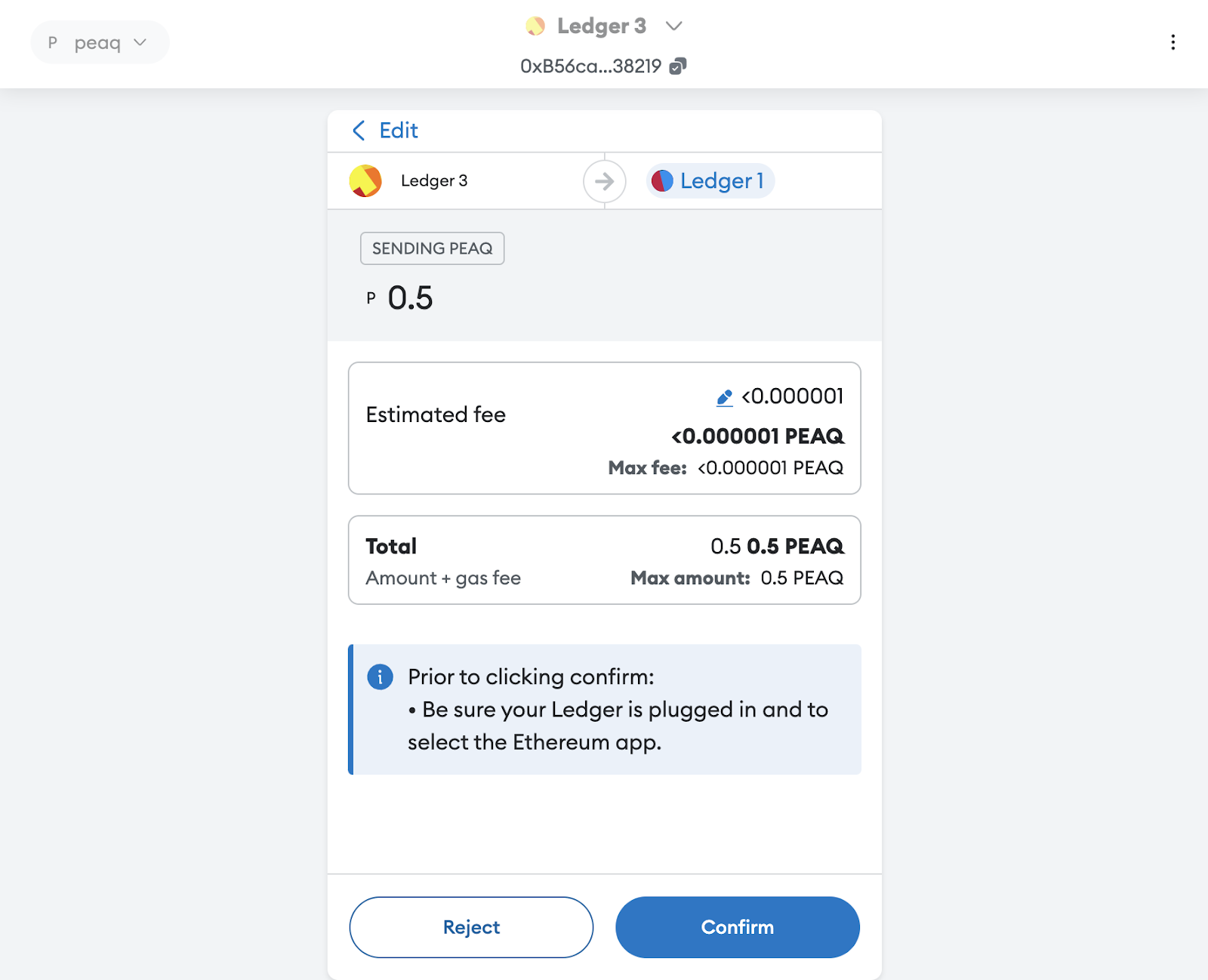
 3. Double-check transaction details and click **Confirm**
 4. This is the screen you’ll see next
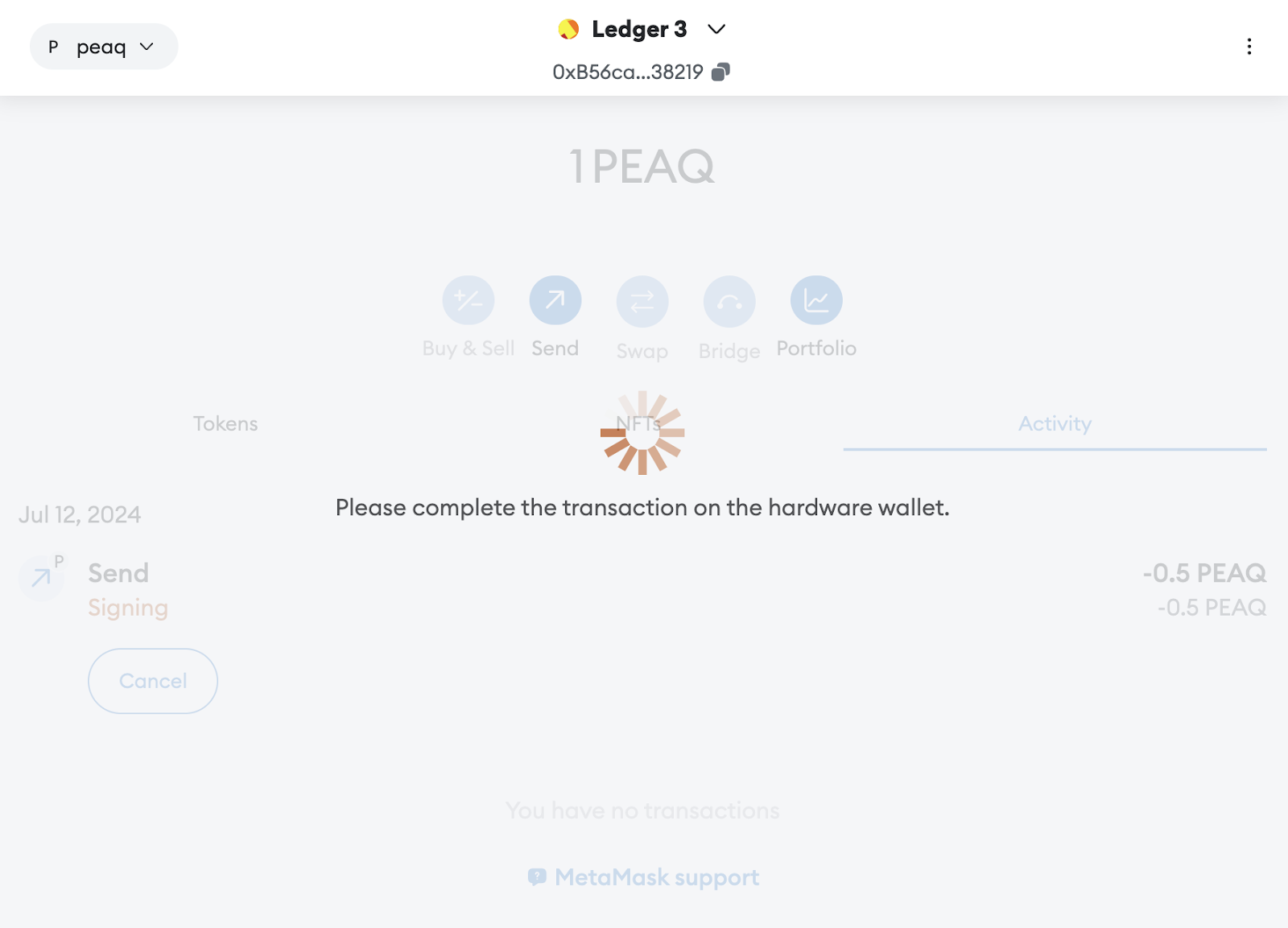 5. Verify and send the transaction on your Ledger (double-check all of the transaction details on your Ledger device screen and click Accept and send by clicking both buttons)